
Scheduling & bookings · optional module
Book trainers, assets and time on one schedule.
Schedule driving lessons, practical assessments and equipment-based training. Match a qualified trainer to an available vehicle, room or piece of equipment, with checks for booking clashes.
Classes and one-on-one bookings share a calendar. Trainers and students see their own sessions in My Schedule.
Optional module · Capability-gated bookings · Never double-booked · Self-service requests · Linked to AVETMISS · Included on all plans
Truck 01
HR · Auto
Truck 06
HC · Auto
Truck 12
MC · Sync
No clash: Gary + Truck 01 are free at 8:00. capability and currency checked.
Set it up once
Three building blocks, then it runs.
Tell RTObase what you book, what each thing is good for, and who can teach it. Every booking after that stays correct by construction.
Assets
Register the things you book, vehicles, rooms, simulators, equipment, and tag each with the capabilities it carries (an HR automatic truck, an MC synchromesh).
Capabilities
Define your own competency vocabulary, licence classes, gearbox types, machine types. They gate who can train, who can assess, and which asset fits.
Trainer matrix
Record what each trainer can deliver and assess, with currency and the road-authority accreditation behind it. Lapsed currency blocks the booking automatically.
Payments for booked training
Collect payment as each lesson or test comes around.
Booking courses can charge each session separately, including retests. Staff manage the request from the same booking and enrolment records they already use.
Set the session fee
Charge lessons, tests and retests at their own fees, with a custom amount when needed.
Send the right payment request
Send or renew the request for that session. Staff can waive a request when appropriate.
Follow what is outstanding
See session payment states on the enrolment and booking so staff can follow up the right fee.
Existing enrolments keep their current payment model. Per-session payments apply when the enrolment uses that model.
The booking gate
Impossible to book the wrong thing.
Every booking passes the same three checks, so a clash, an unqualified trainer, or a vehicle that doesn’t fit simply can’t be saved.
Only eligible people and equipment are offered
Pick the competency, and the trainer and asset pickers show only the trainers approved for it and the assets that match, no way to book the wrong combination.
Nobody is ever double-booked
Trainer, assessor, asset and student each can hold only one booking at a time. Clashes are flagged live as you pick, and a clashing booking cannot be saved, blocked, not just warned about.
Inside your booking hours: never on leave
Your RTO sets the hours it takes bookings and the dates it’s closed, public holidays, shutdowns, one-off blackouts. On top of that, each trainer carries their own working hours and leave, and every location its closures. The gate honours all of them before a slot is offered.
On the board
See a day, or the whole week.
Lay the board out by asset or by trainer, then switch between a single day and a Monday-start week. Clashes surface the moment you pick a time, long before anything is saved.
A day or a week at a glance
Toggle between Day and Week, and view the board per asset or per trainer. Each vehicle, room or trainer gets its own lane with every booking stacked beneath it and today highlighted, so a full week of one-on-one sessions reads at a glance.
Clashes flagged before you save
As you build a booking, any trainer, assessor or vehicle already busy in that window is greyed out with a “Booked 9:00 to 11:00” badge, and a banner warns if the student already has a session that day. You see the conflict while you’re choosing, and even if you miss it, a clashing booking simply won’t save.
When things change
Plans move. The board keeps up.
When a trainer calls in sick or a truck goes in for service, RTObase surfaces every booking that no longer lines up, and fixes it in a click.
Affected bookings surface under “Needs attention” the moment a resource changes.
“Find another time” suggests free slots and reassigns the trainer and asset in one step.
Trainer leave is categorised, and per-location closures keep public holidays clear.
Separation of duties: where a competency requires it, the assessor must be a different person.
Trainer on leave, 1 booking affected
Gary blocked out Thu, his 8:00 lesson needs a new time.
Find another time
Reassigned to Sue + Truck 06, Fri 9:00, capability and currency re-checked, conflict cleared.
Self-service
Students request. Staff confirm. AVETMISS gets it all.
Book an offered slot or request a time
Logged-in students and employer contacts can book offered slots against live availability. A preferred-time request remains available when they need staff to arrange a session.
Every session counts towards AVETMISS
Each booking links to the student’s enrolment, a standing class where there is one, or the course itself for one-off sessions, so the activity rolls up to your AVETMISS reporting with everything else, no double entry, no reconciling a separate calendar.
Each booking carries the unit and location from the class or course it is delivered against. It is ready for your NAT files with no re-keying.
Live venue screens
Put the day's bookings where everyone can see them.
Pair a TV or tablet with a one-time code. Choose a venue and show the booking board, today's classes or asset readiness. The screen updates automatically and cannot change records.
No staff login on the display device
Public-area privacy hides sensitive learner details
Rotate between the views you choose
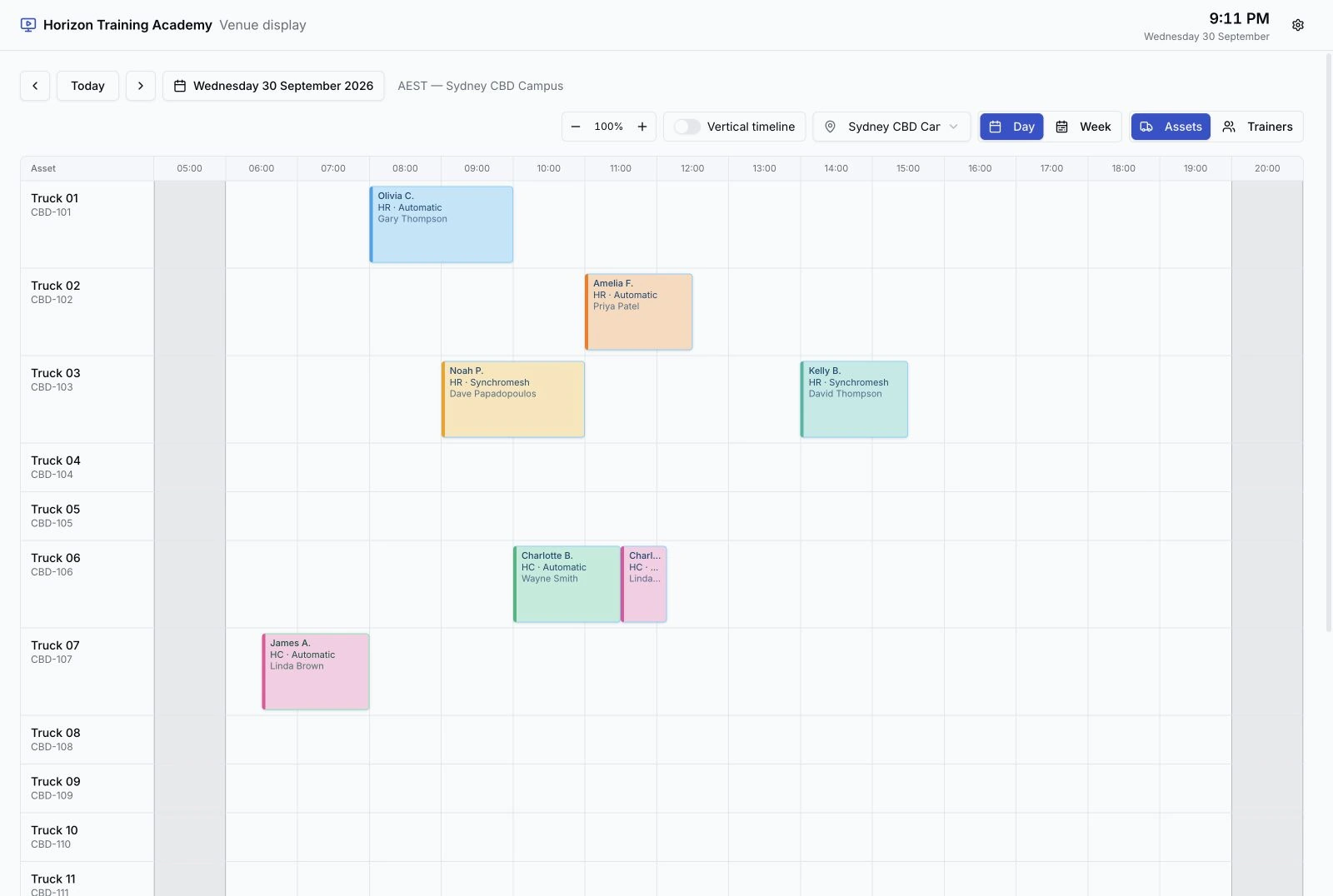
Booking board & screens
Plan the day, then keep the venue informed.
Manage bookings, reserved time and unavailable assets on the same board. Share a live, read-only view with the people at your venue.
Session payments
Charge each lesson, test and retest separately. Follow outstanding session payments from the enrolment or booking, then send, renew or waive the right payment request.
Calendars and venue hours
Send session calendar invitations and subscribe to schedules. Every new booking has a location so its hours, closures and time zone apply. Set named breaks across all sites or for one venue.
Asset and trainer timelines
Use horizontal or vertical day layouts, arrange rows, zoom the board and filter by booking status. Your preferences are saved.
Holds before the learner is ready
Reserve an asset with an optional trainer and assessor. Edit the hold, release it or turn it into a booking with the details kept.
Maintenance and time off
Mark an asset unavailable for an afternoon or several days. See trainer leave and location closures beside the sessions they affect.
Find and resize a session
Find a continuous available slot for the trainer and asset, choose a booking block and resize a booking on the calendar.
Live screens at your venue
Pair a TV or tablet with a one-time code to show the booking board, today's classes or asset readiness. No staff login is needed on the device. Choose public-area privacy to hide sensitive learner details.
Daily pre-start checks
See which booked assets still need a daily check. Trainers capture the checklist from the board, with required answers, failure notes and photo evidence. The asset readiness screen shows the same check status.
FAQ
Scheduling questions, answered
Straight answers about who it’s for, what it enforces, and how it stays compliant.
Yes. Booking courses can use per-session payments, with a separate request for each lesson, test or retest at its own fee. Staff can send, renew or waive a session payment request, or set a custom amount. Outstanding payments appear on the enrolment and booking. Existing enrolments keep their current payment model.
RTOs that deliver one-on-one or resource-based sessions rather than only classroom groups, driving schools, practical assessments, simulator time, equipment-based training. If you train students in a vehicle, a room or on a machine, scheduling matches the right trainer, the right asset and a free time. Classroom-only RTOs can leave it switched off.
No. Scheduling is an optional module included on every plan, Startup, Business and Custom. You switch it on in Settings when you need it; turning it off again hides the surface but keeps your bookings.
Two ways, working together. As you build a booking, any trainer, assessor or vehicle already busy in that window is greyed out with a “Booked 9:00 to 11:00” badge, and a banner warns if the student already has a session that day. You catch the clash while you’re still choosing. If a clash slips past, RTObase physically cannot save it: a trainer, assessor, asset or student can never hold two overlapping bookings. A clashing booking is refused, not just warned about. The same check confirms the trainer is working at that time and isn’t on leave.
You record what each trainer can deliver and assess, and tag each asset with the capabilities it carries. When you book a session for a competency, only eligible trainers and matching assets are offered, and a trainer whose credential or regulator accreditation has lapsed is blocked until it’s renewed.
Yes, once logged in, students (and the employers who sponsor them) can request a session from the portal. They can choose an offered available slot and book through the portal. If no offered slot suits, they can request a preferred time for staff to review and confirm.
Yes. Each booking links to the student’s enrolment, against a standing class where there is one, or directly against the course for one-off sessions, so the activity rolls up to your AVETMISS reporting with the right unit and location, no separate data entry.
Book one-on-one training without the double-bookings
Switch on scheduling when you need it, match trainer, asset and time through one gate, let students request their own sessions, and keep every booking in your AVETMISS records. Included on every plan.
No credit card required. Scheduling is an optional module included on all plans.